SCIM Provisioning
SCIM with Microsoft Entra ID (Azure AD)
Automatically sync employee entries with users from Microsoft Entra ID (formerly Azure AD). Any changes you make to users in Entra ID will be synchronized to AssetNode. Name, email, job title and department sync on their own — there are no per-field options to switch on. Location and manager are not read from SCIM.
Syncs every ~40 minutes
คู่มือการตั้งค่า (10 ขั้นตอน)
1
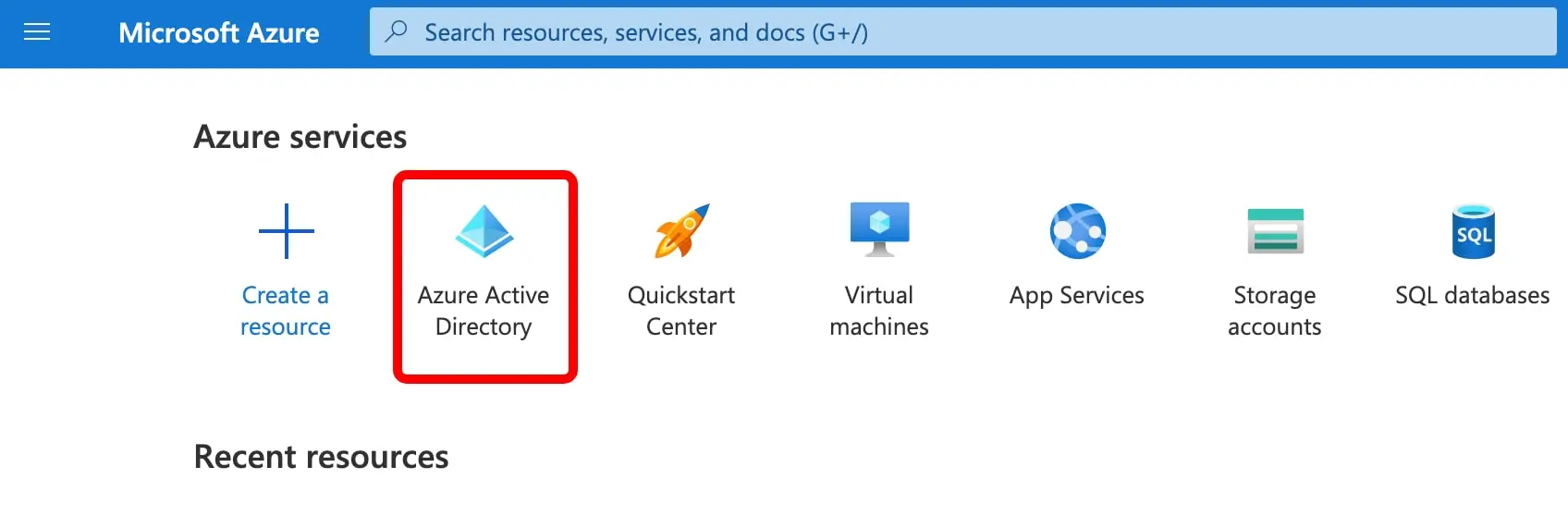
Log in to Azure and open Entra ID
Navigate to portal.azure.com, sign in with your administrator account, and click on Microsoft Entra ID.
2
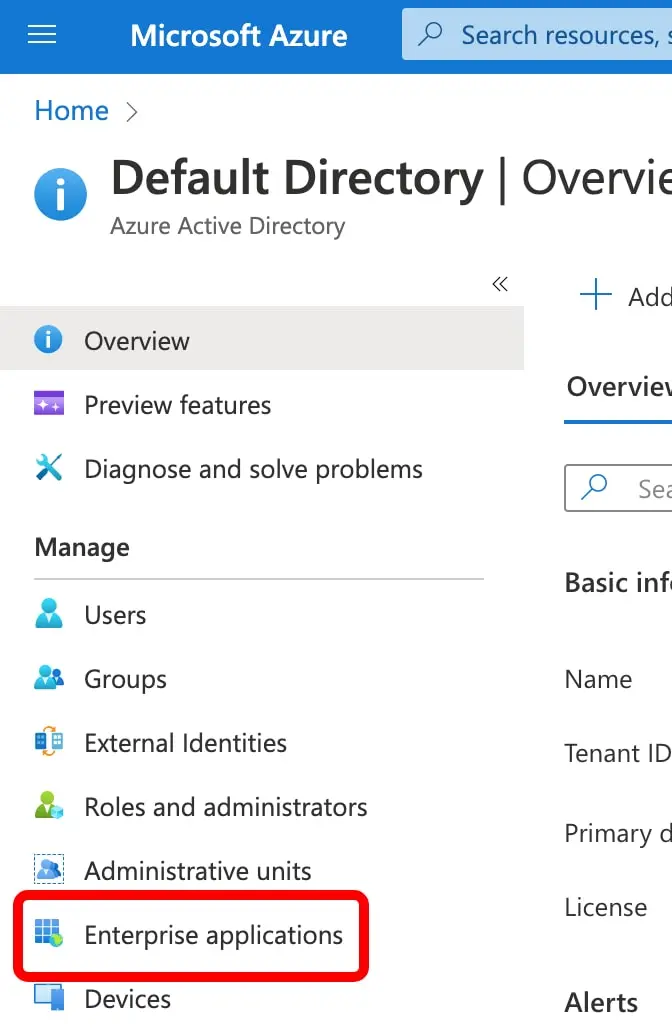
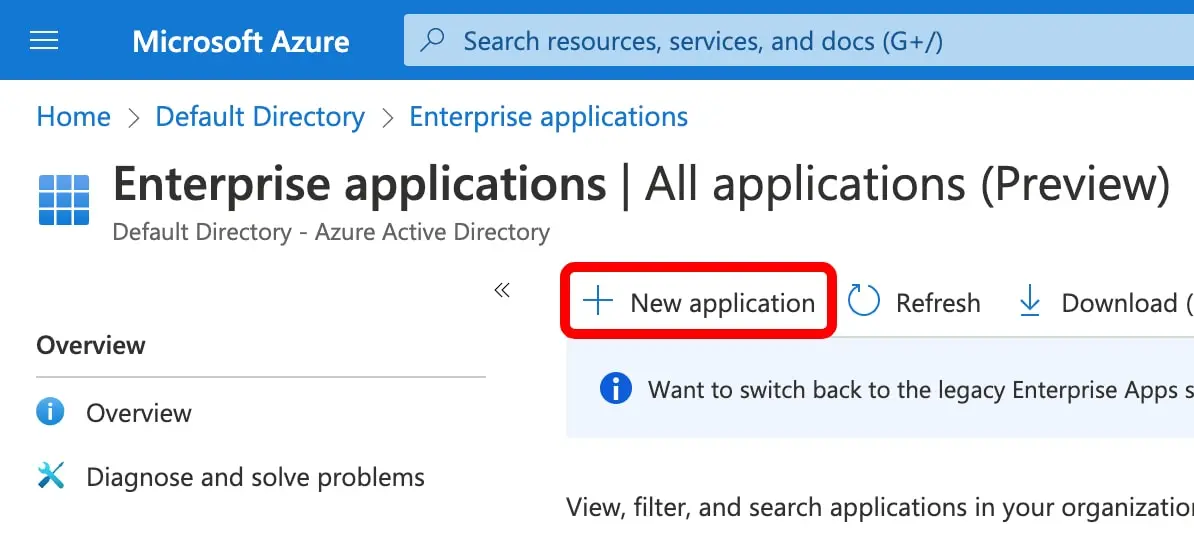
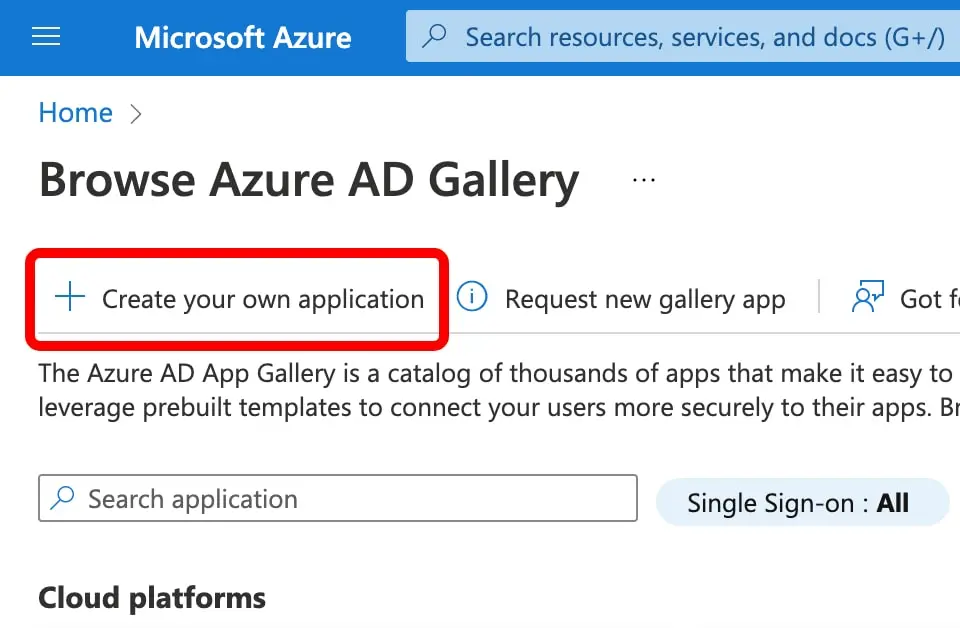
Create a new Enterprise Application
Go to the Manage tab → Enterprise Applications → New Application → Create your own application.
3
Name your application
Enter "AssetNode SCIM" as the name, select "Integrate any other application you don't find in the gallery (Non-gallery)", and click Create.
4
Open Provisioning settings
In your newly created application, click on Provisioning in the left sidebar, then click on Provisioning again to open the configuration.
5
Set Provisioning Mode and enter credentials
Change the Provisioning Mode to "Automatic". In the Admin Credentials section, enter the Tenant URL and Secret Token from your AssetNode Settings → SCIM 2.0 section. Click "Test Connection" to verify the connection works, then click Save.
6
Disable Group Provisioning
After saving, a Mappings section will appear further down on the same page. Click on "Provision Microsoft Entra ID Groups" and set Enabled to "No". Click Save.
7
Open User Attribute Mappings
Back in the Mappings section, click on "Provision Microsoft Entra ID Users" to open the user attribute mapping configuration.
8
Change userName to use email
Find the "userName" attribute row and click the Edit button. Change the Source attribute from "userPrincipalName" to "mail", then click Ok.
9
Assign Users and Groups
Go back to the application overview. Click on "Users and groups" in the left sidebar, then click "Add user/group". Select all the users or groups you want to synchronize as employees to AssetNode.
10
Start Provisioning
Go back to Provisioning and click "Start provisioning". The initial synchronization will begin and may take a few minutes depending on the number of users.
หลังตั้งค่าเสร็จสิ้น
- The synchronization runs approximately every 40 minutes. Any changes you make to users in Entra ID will be automatically reflected in AssetNode.
- If you change an employee's name, email, or job title in Entra ID, it will automatically update in AssetNode.
- If you remove a user from Entra ID, they are marked inactive in AssetNode and given an end date, not deleted — they may still have assets checked out.
- Departments arrive with the user. Leave "Automatically create departments from provisioned users" switched on in Settings → Integrations → SCIM 2.0, or a department Entra ID sends that AssetNode does not have yet is dropped instead of created.