MDM Integration
Microsoft Intune Integration
Automatically add devices from Intune into AssetNode as assets.
Syncs every ~10 minutes
Setup guide (7 steps)
1
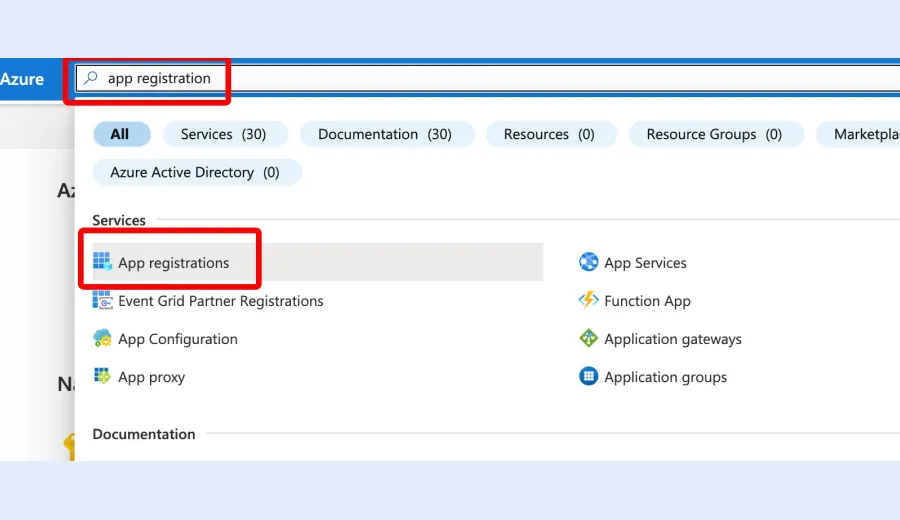
Log in to your Azure Portal
Navigate to portal.azure.com and sign in.
2
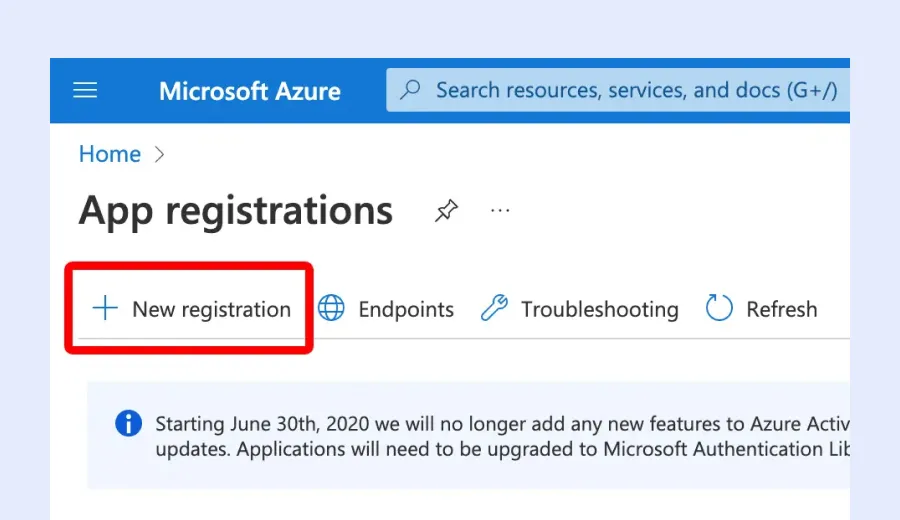
Register a new application
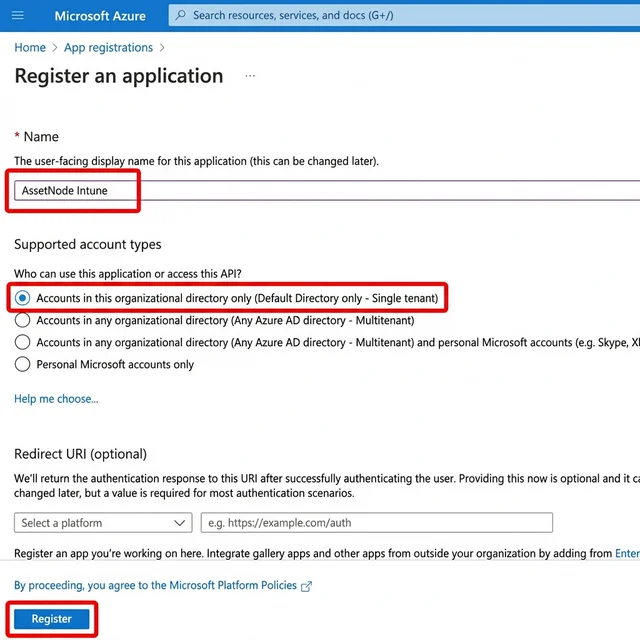
Go to App registrations → New registration. Name it "AssetNode Intune".
3
Note your credentials
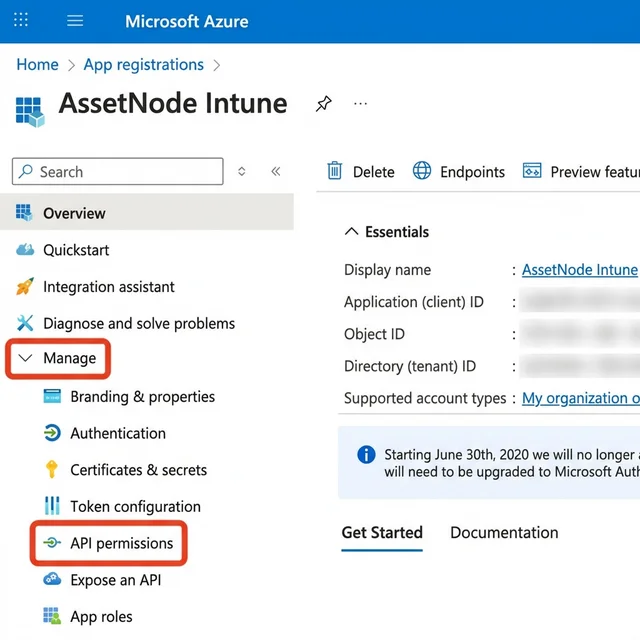
Copy the Application (client) ID and Directory (tenant) ID.
4
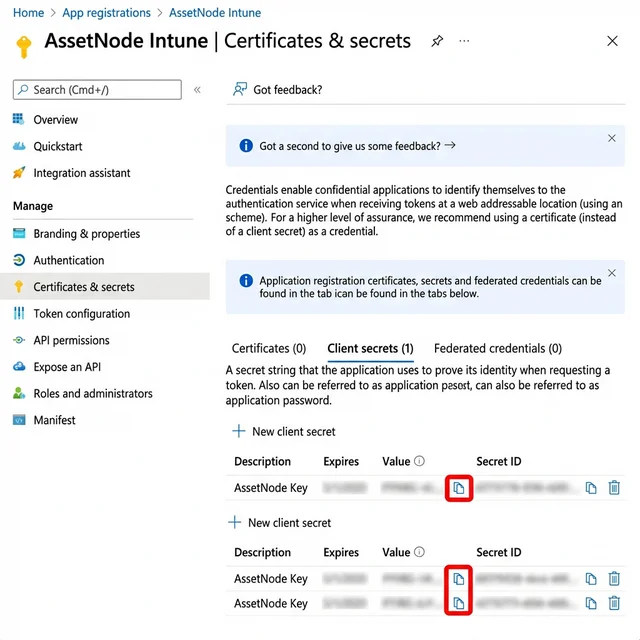
Create a client secret
Go to Certificates & secrets → New client secret. Copy the Value immediately.
5
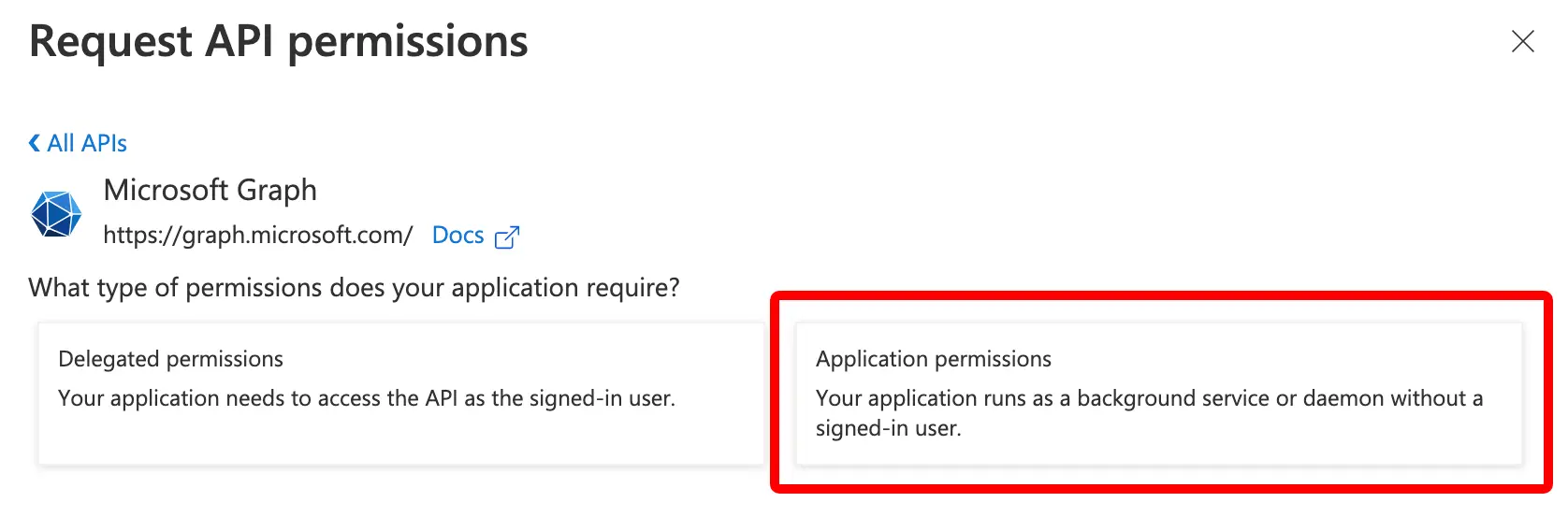
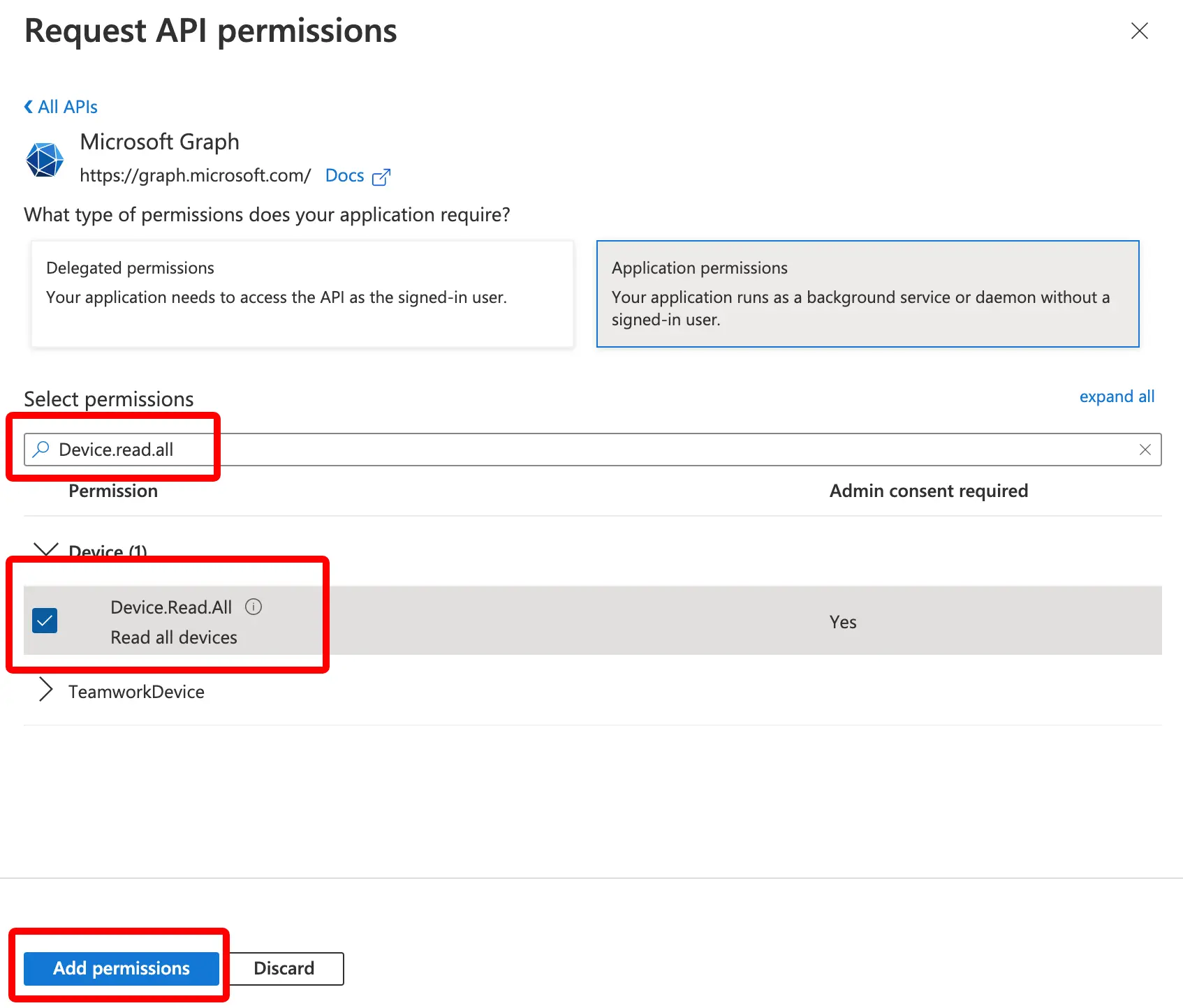
Configure API permissions
Add DeviceManagementManagedDevices.Read.All. Grant admin consent.
6
Enter credentials in AssetNode
Go to Settings → Intune section. Enter the Tenant ID, Client ID, and Client Secret.
7
Verify sync
Check the sync status and verify devices appear in your asset list.
After completing setup
- To automatically checkout assets to employees, add employees first (via SCIM or import).
- New devices added to Intune are automatically created as assets in AssetNode.