Single Sign-On
Single Sign-On with Google Workspace
Let your team members log in to AssetNode using their Google Workspace accounts.
Setup guide (6 steps)
1
Log into your Google Workspace admin account
Navigate to admin.google.com.
2
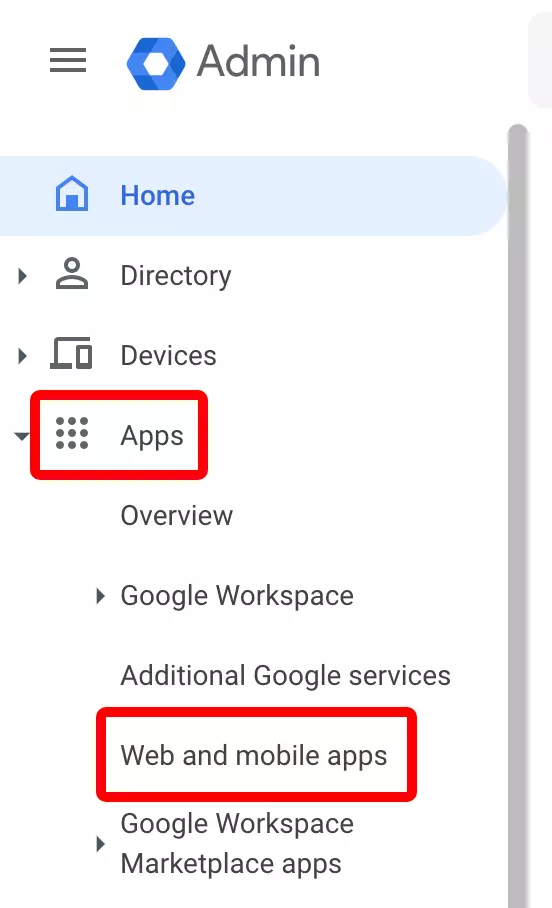
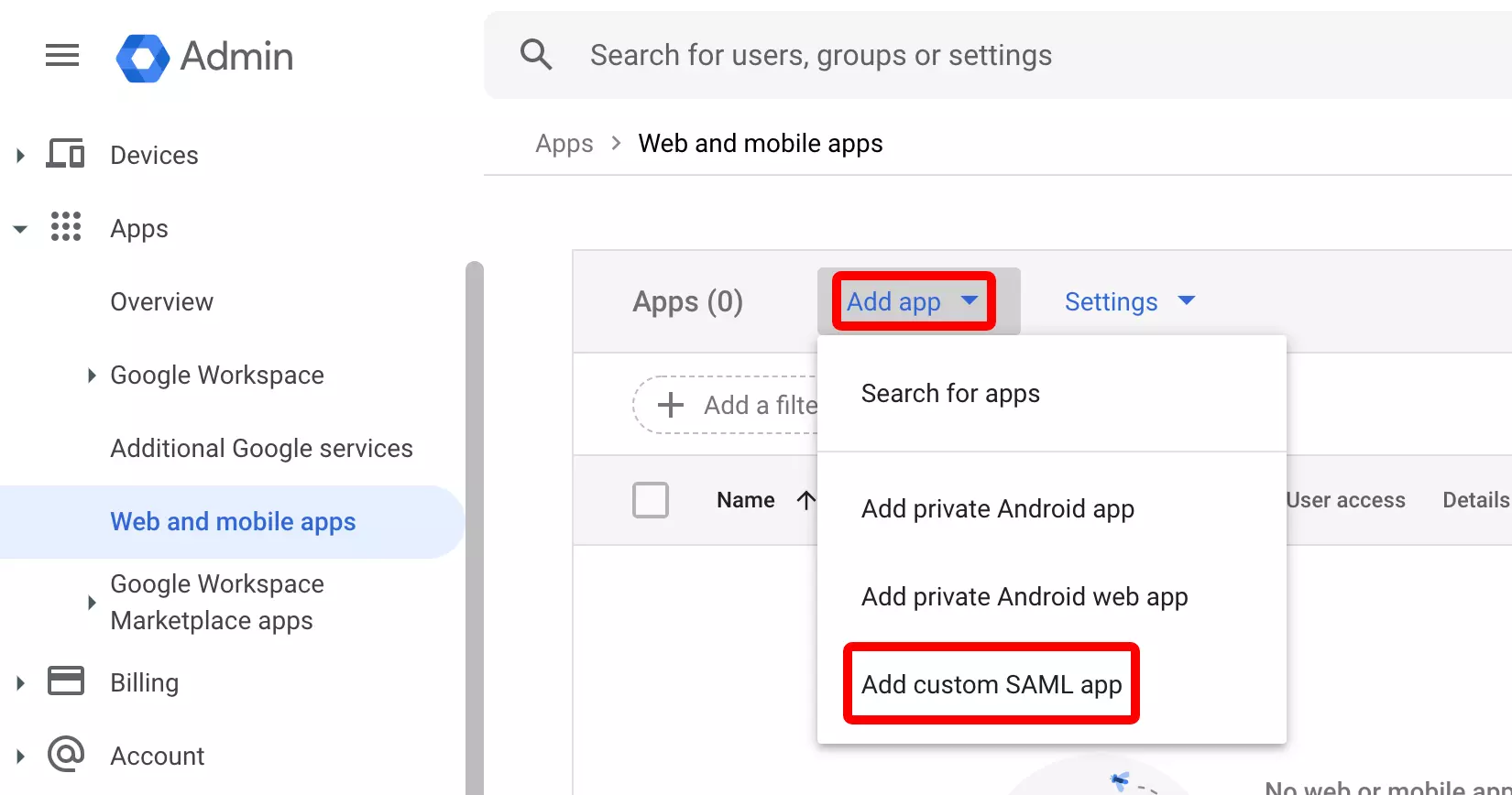
Navigate to SAML apps
Go to Apps → Web and mobile apps → Add custom SAML app.
3
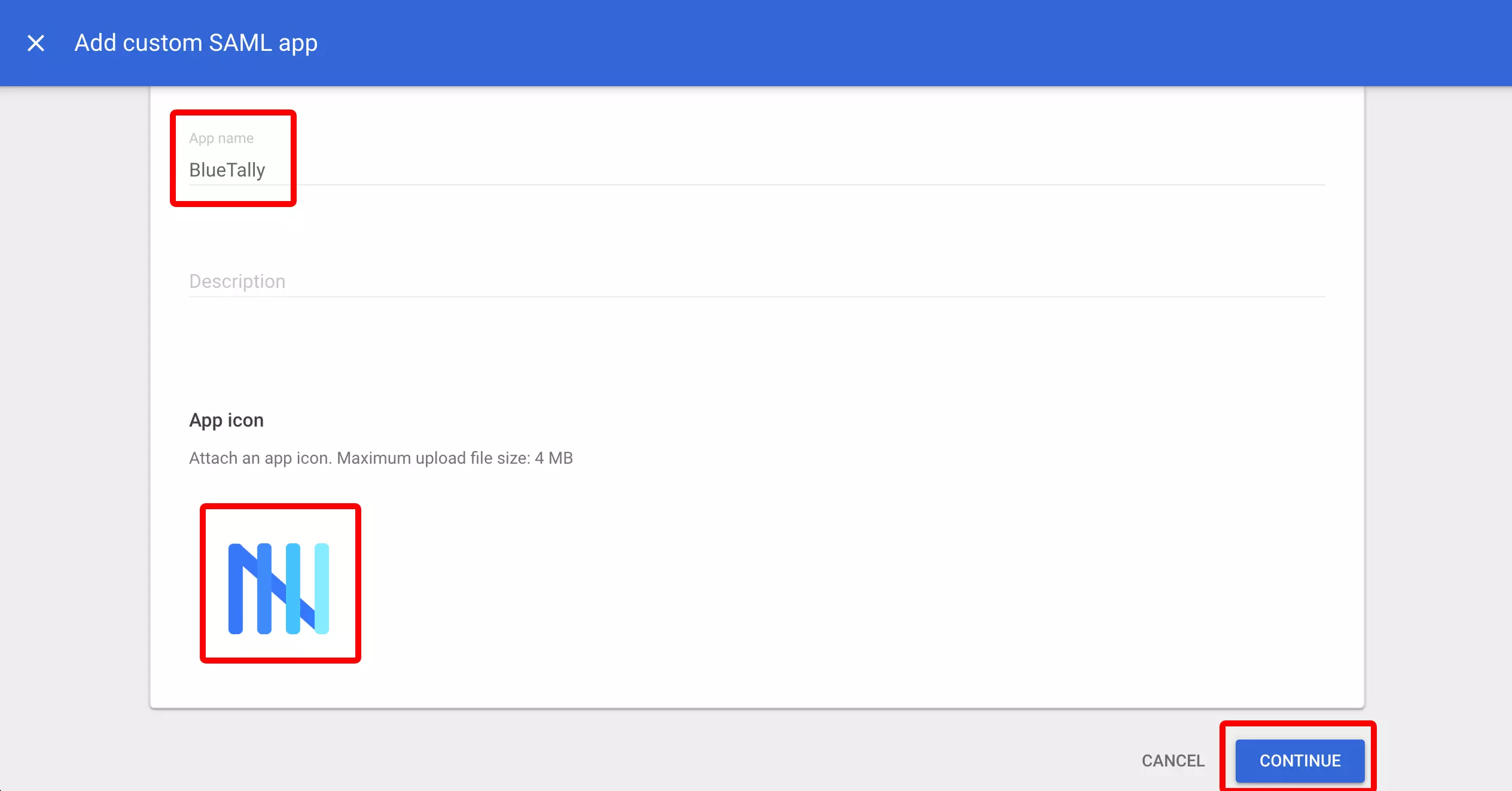
Download Google IdP metadata
Download IdP metadata or copy SSO URL and certificate.
4
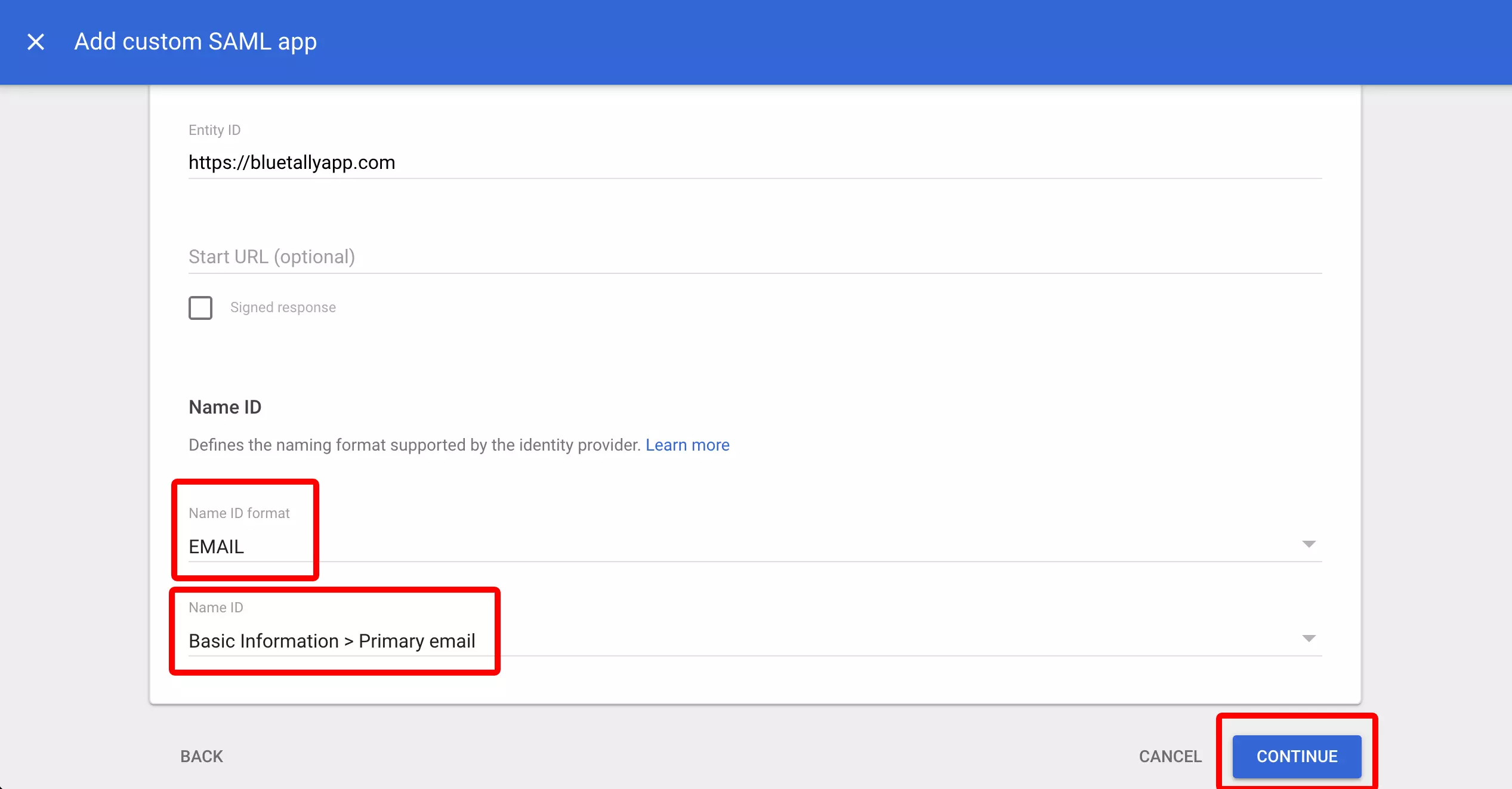
Configure Service Provider details
Set ACS URL and Entity ID from AssetNode settings.
5
Enter details in AssetNode
Paste Google SSO URL, Entity ID, and certificate.
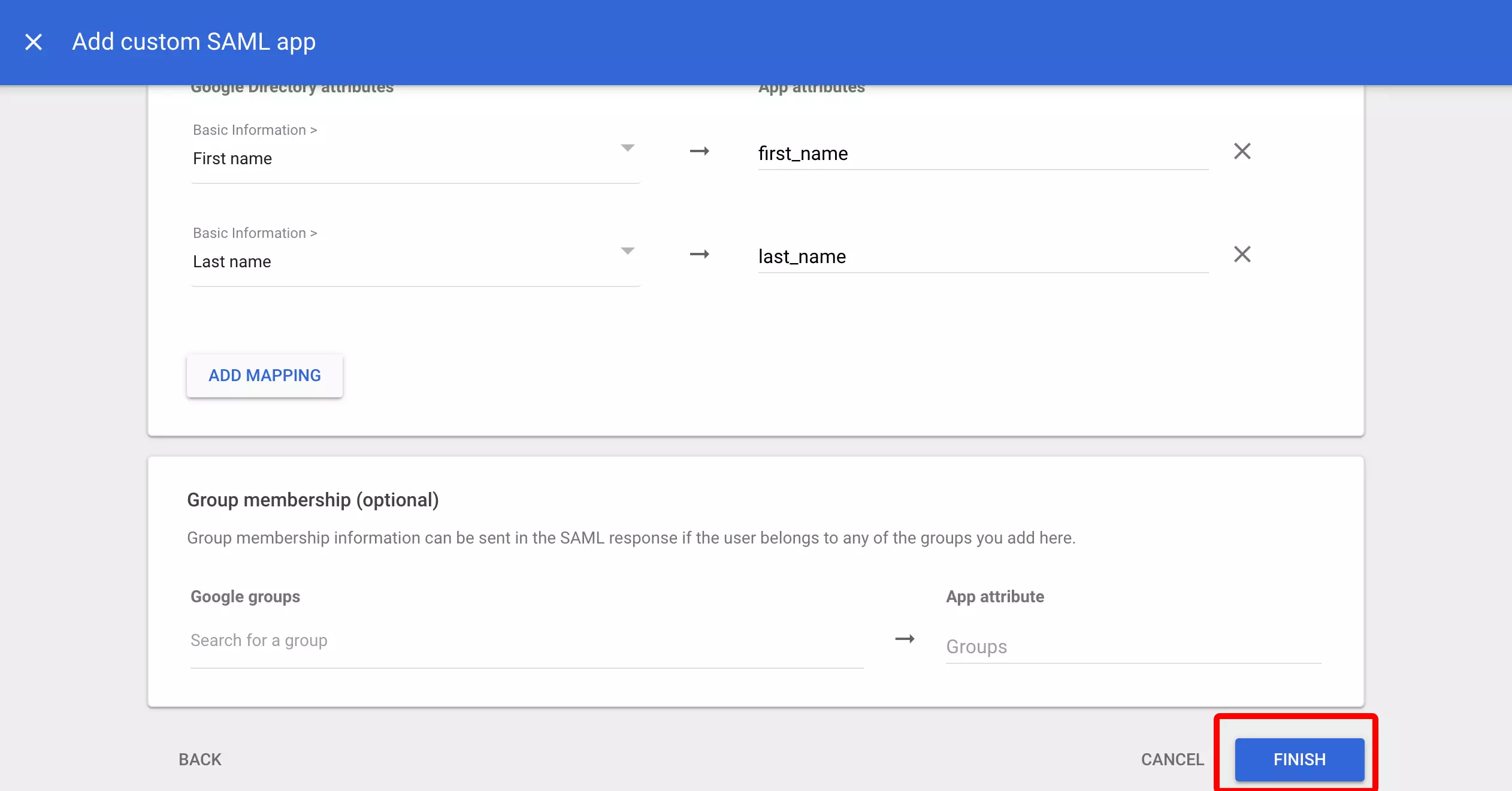
6
Enable the app for users
Turn on the app for everyone or specific organizational units.
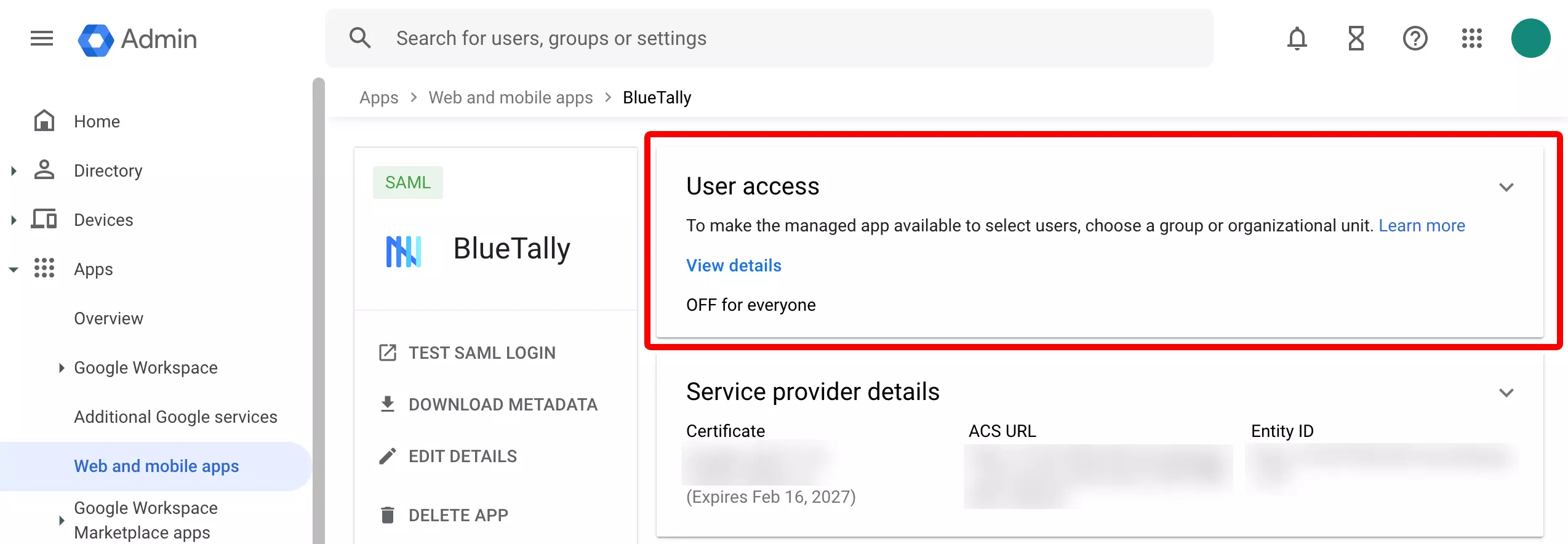
After completing setup
- Once SSO is active, giving new users access is done by enabling the app in Google Admin.
- Enable "Force SSO" to require all users to sign in via Google.