Single Sign-On
Single Sign-On with Azure Active Directory
Let your team members log in to AssetNode using their Microsoft credentials.
คู่มือการตั้งค่า (7 ขั้นตอน)
1
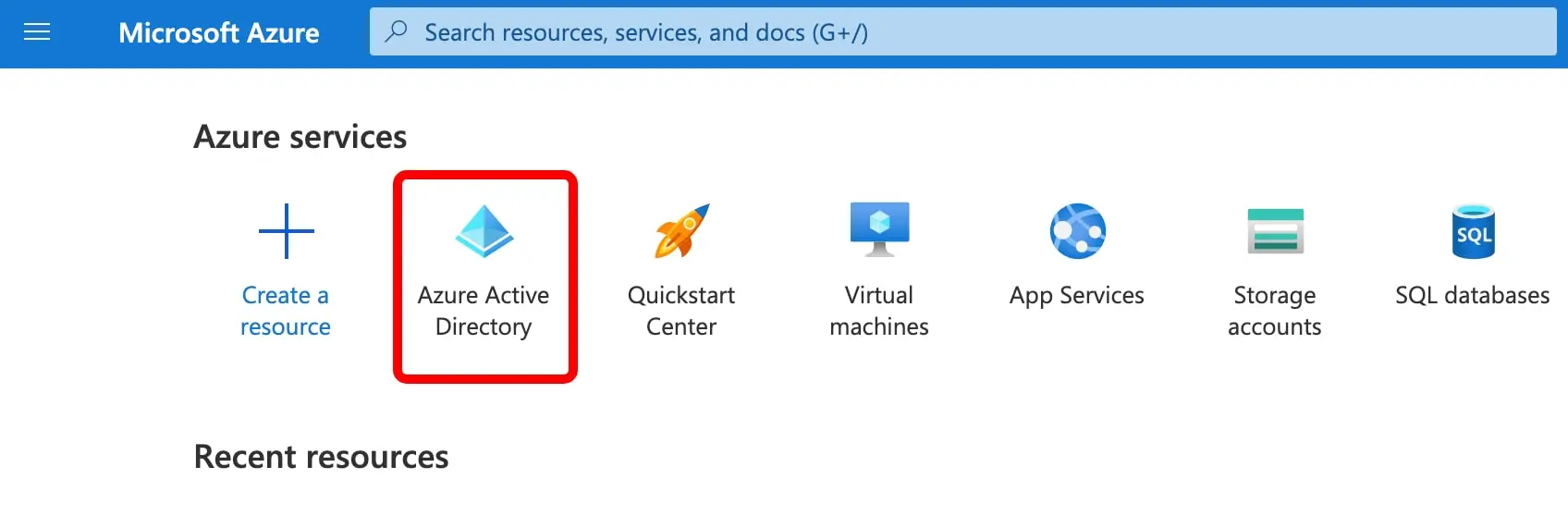
Log in to your Azure Portal
Navigate to portal.azure.com.
2
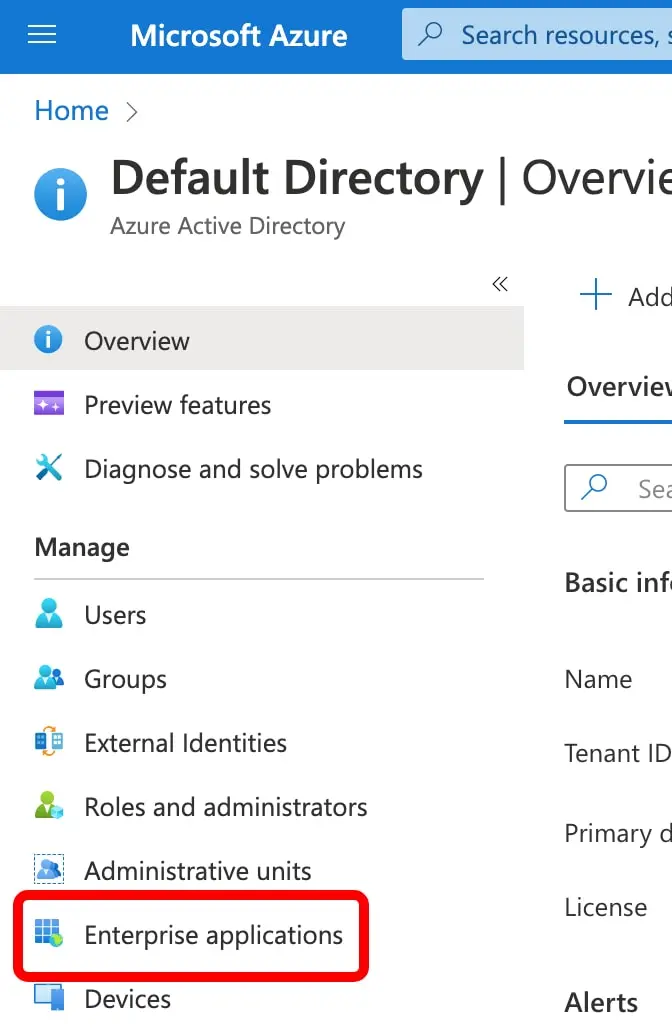
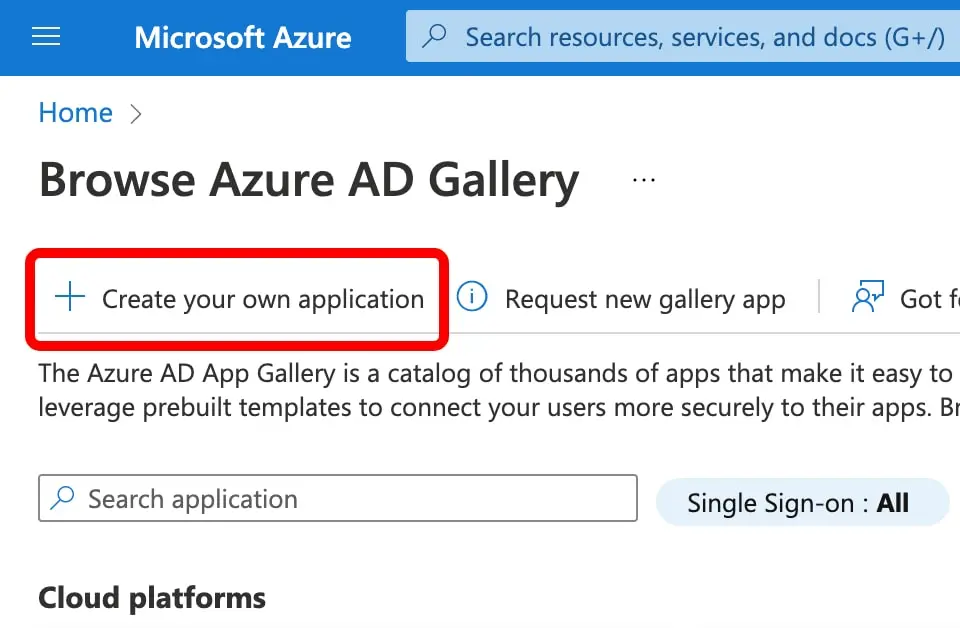
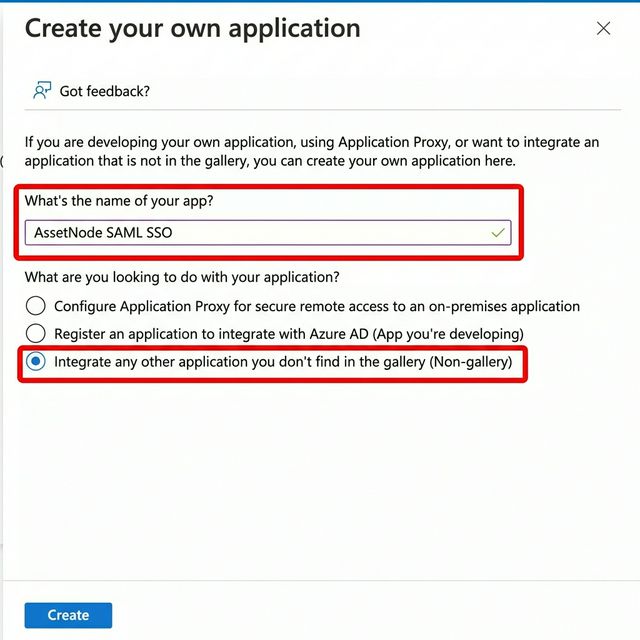
Create an Enterprise Application
Go to Enterprise Applications → New Application → Create your own.
3
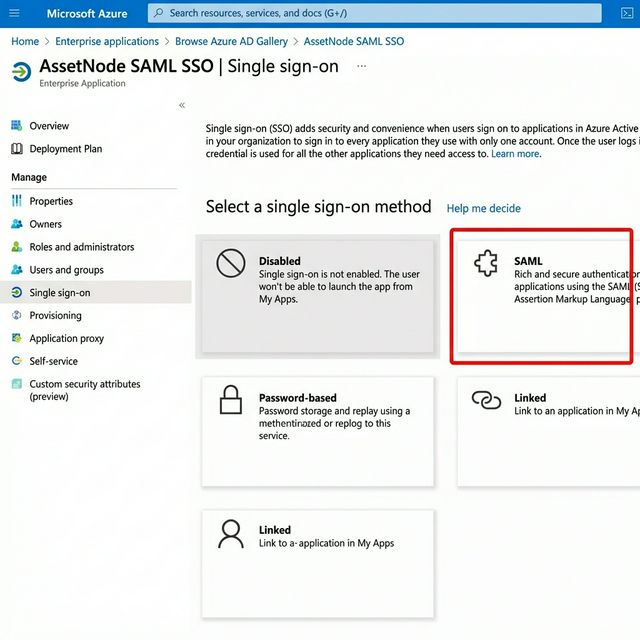
Configure Single Sign-On
Go to Single sign-on → Select "SAML".
4
Set up Basic SAML Configuration
Set the Entity ID and Reply URL from your AssetNode SSO settings.
5
Download the certificate
Download the "Certificate (Base64)".
6
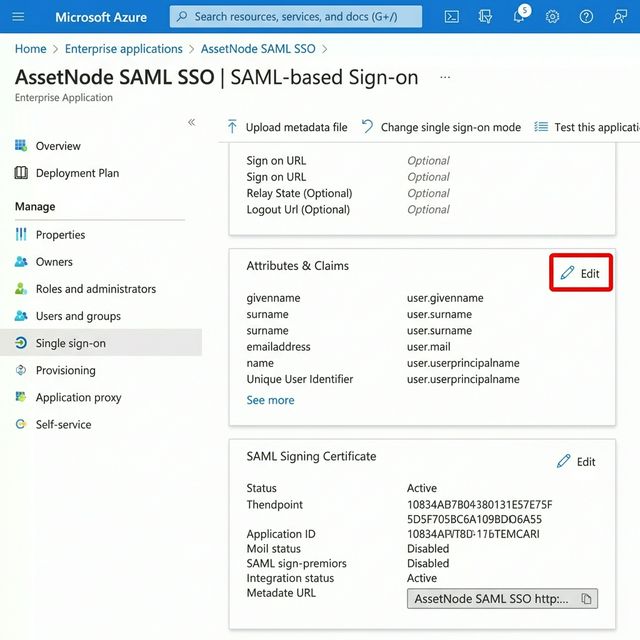
Enter details in AssetNode
Go to AssetNode Settings → Integrations and open the SSO / SAML card. Enter the Entity ID, SSO Login URL and certificate, add at least one allowed email domain, then switch Enable on and click Save.
7
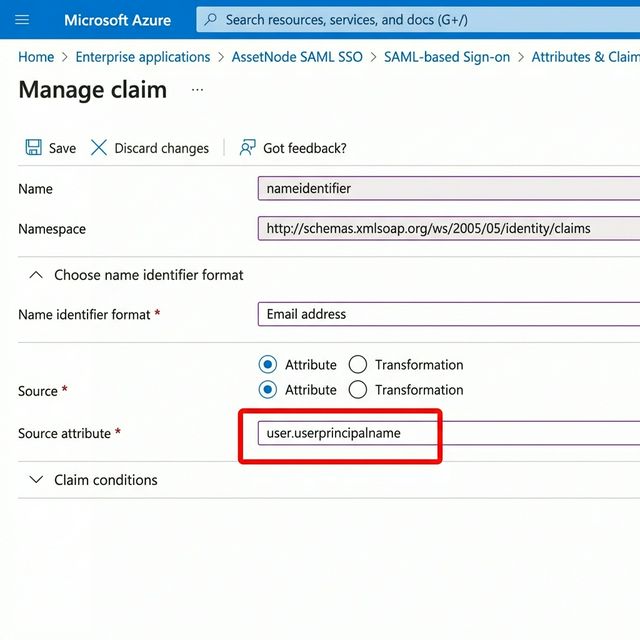
Assign users
Assign users or groups to the application.
หลังตั้งค่าเสร็จสิ้น
- Once SSO is active, new users get access by being assigned in Azure AD.
- You can enable "Force SSO" to disable password-based login entirely.