Single Sign-On
Single Sign-On with JumpCloud
Let your team members log in to AssetNode using their JumpCloud credentials.
คู่มือการตั้งค่า (5 ขั้นตอน)
1
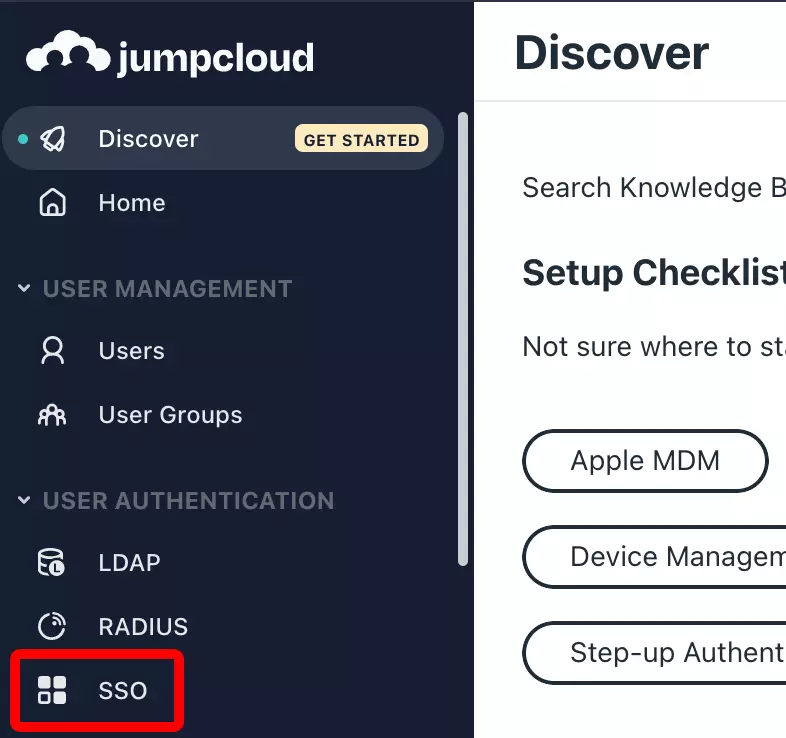
Log in to your JumpCloud
Navigate to console.jumpcloud.com.
2
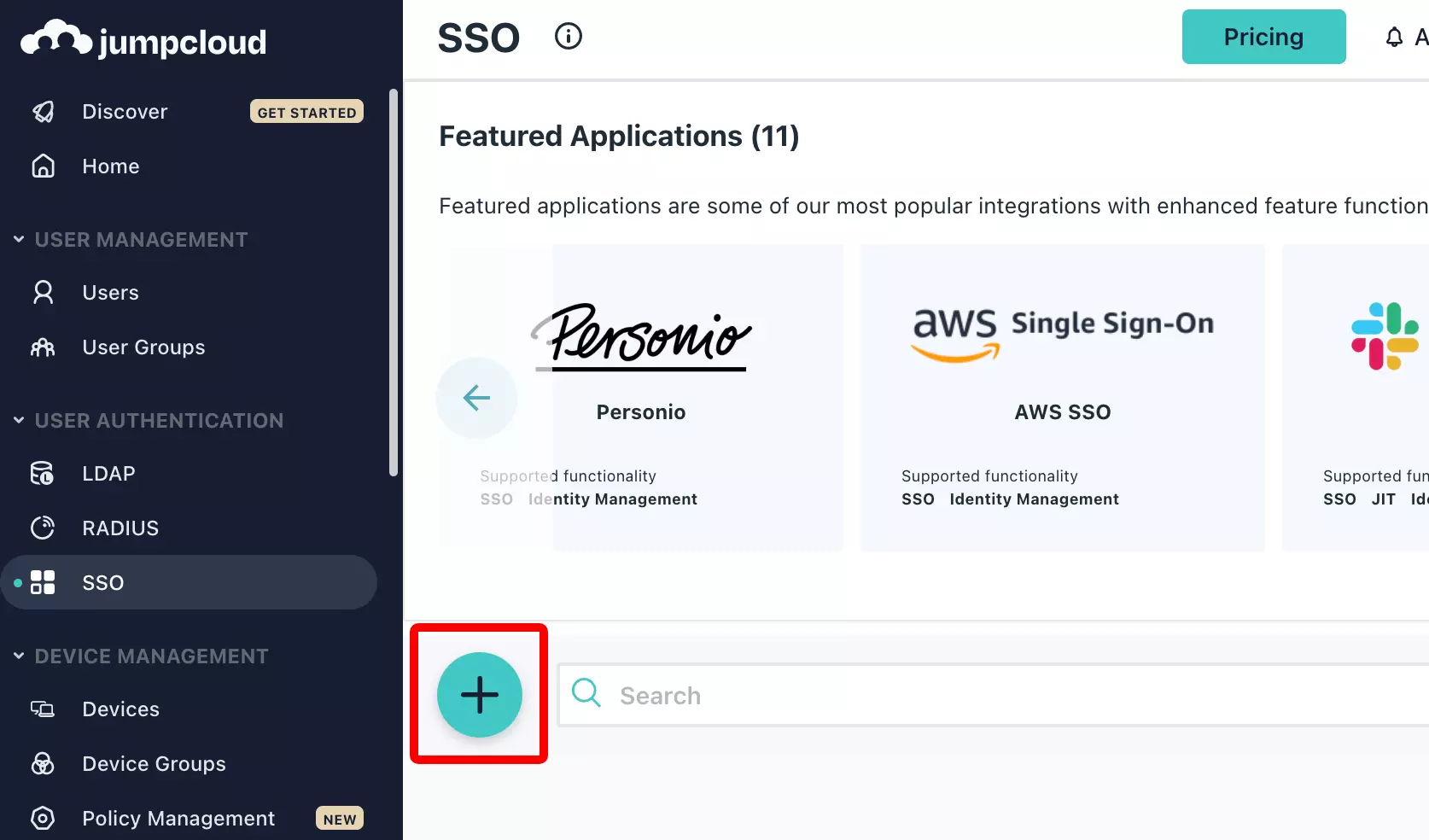
Create a new SSO application
Go to SSO Applications → Add New Application → Custom SAML App.
3
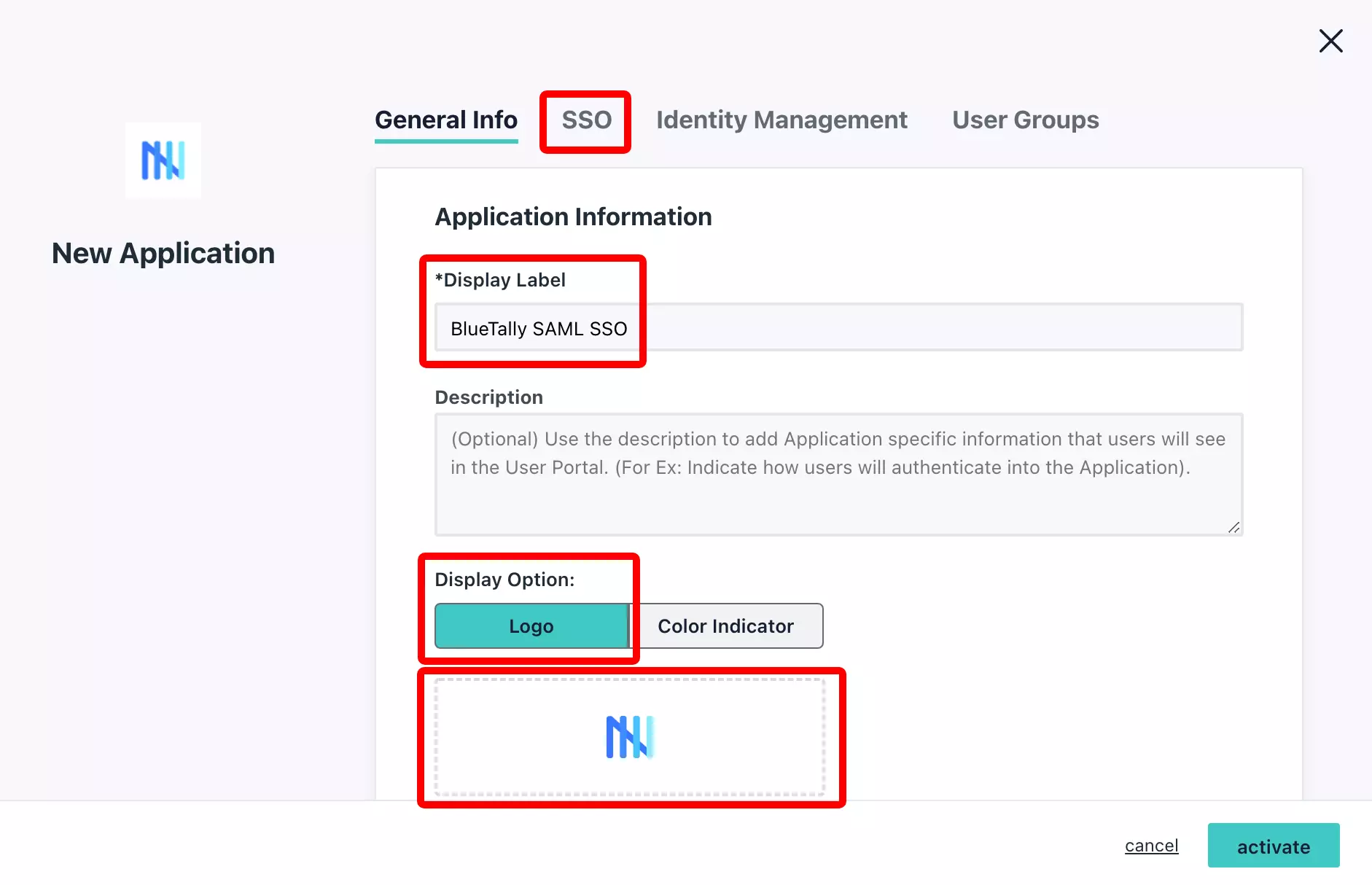
Configure SSO settings
Set SP Entity ID and ACS URL from AssetNode settings.
4
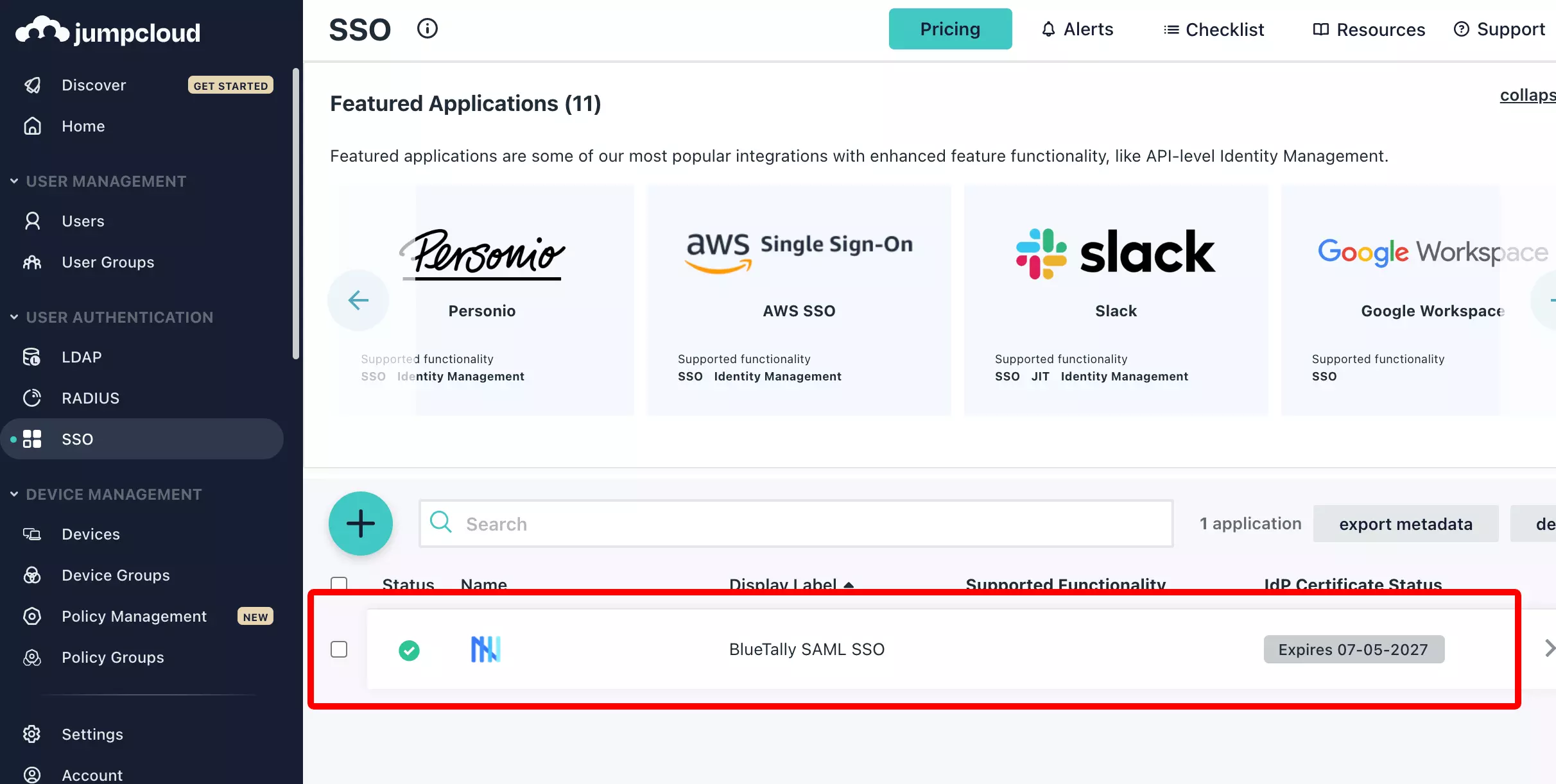
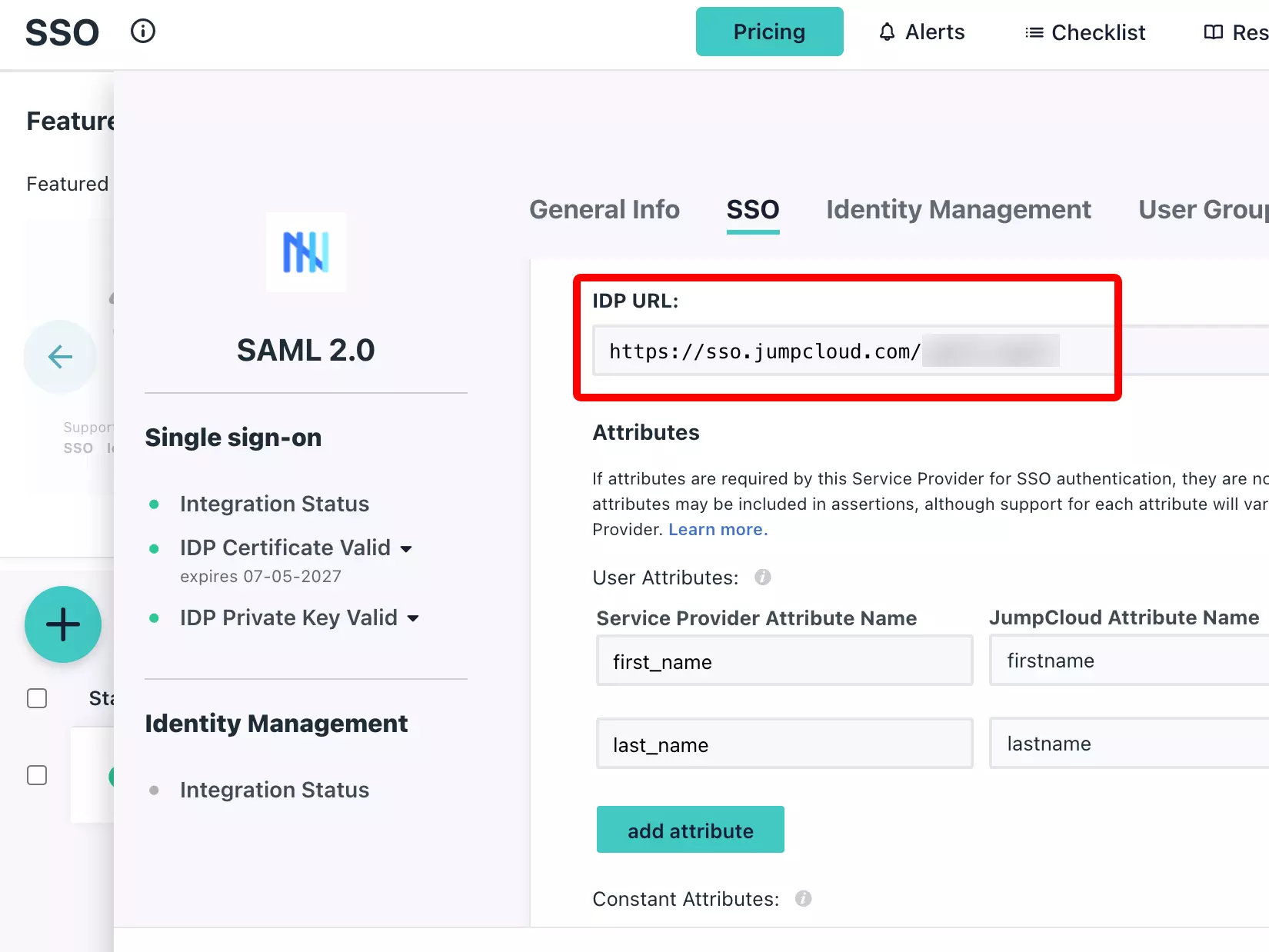
Download IdP certificate
Copy the IdP URL and download the certificate.
5
Enter details in AssetNode
In AssetNode Settings → Integrations, open the SSO / SAML card. Paste the IdP SSO URL, Entity ID and certificate, add at least one allowed email domain, switch Enable on and click Save.
หลังตั้งค่าเสร็จสิ้น
- Once SSO is active, giving new users access is done by adding them to the bound user group.
- Enable "Force SSO" to require all users to sign in via JumpCloud.